
01 / CAPTURE
Work photos, in their own space.
Use your device’s camera, organize the photos into albums, and send them to your PC. Your device or camera app may also keep a copy in its photo library.
Import existing photos in batches, too.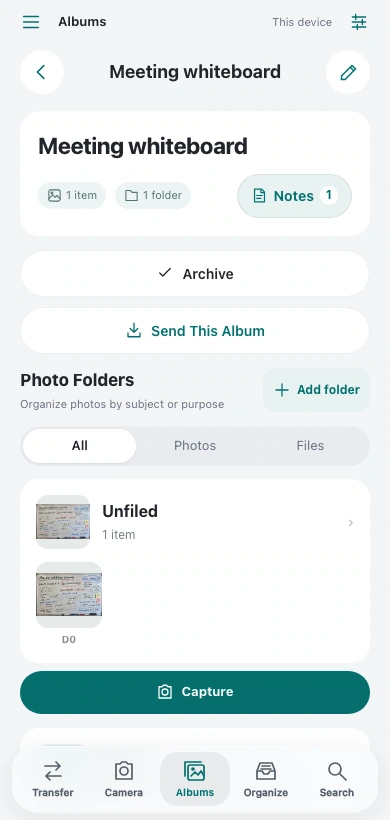
iPhone · Android → Windows · Mac
Send it. Copy it. Put it to work. From your phone to Windows or Mac, without a cable or an account.
Free. No account. Connect by number or QR.
Photos sent by email or through the cloud end up in your Downloads folder or somewhere similar. You open the folder and hunt through the files for the one you just sent, every time you need it in a document.
With PhotoToPC, the photo appears on screen as soon as it arrives. Press Ctrl+C over it, then paste it into your document.
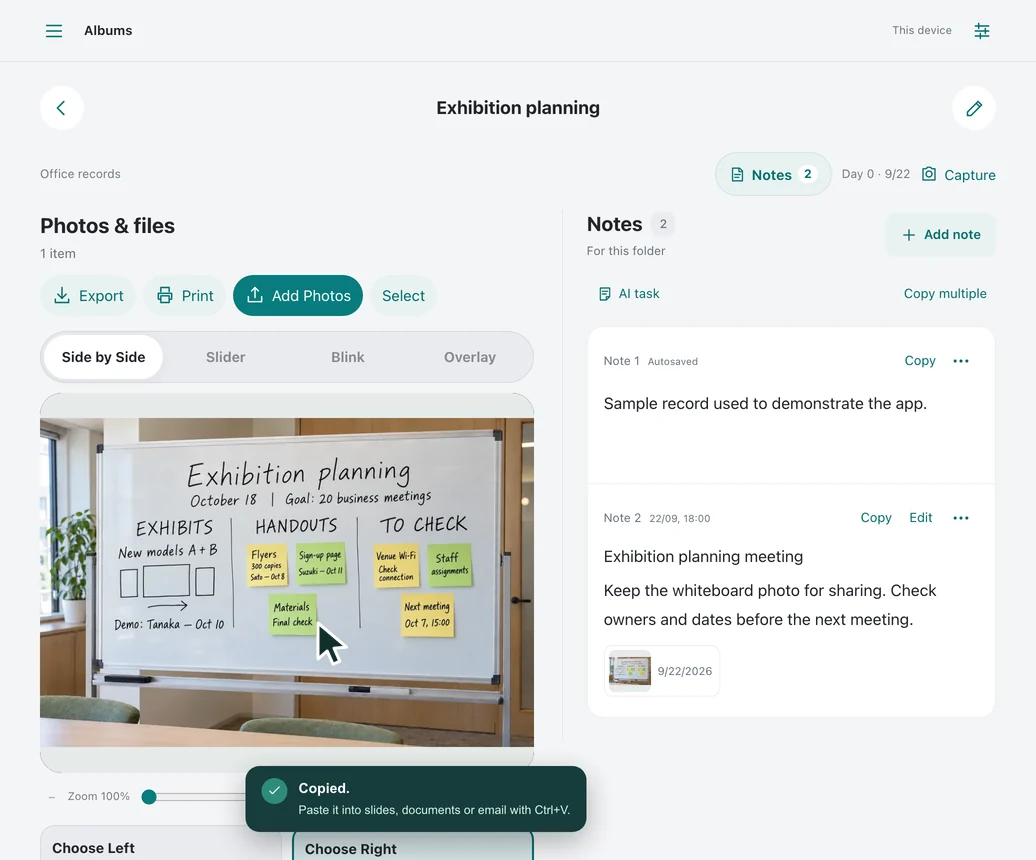 ACTUAL APP SCREEN
Documents. Slides. Emails.Anywhere that accepts pasted images.
Try it here, before sending a photo of your own.
On a PC, press Ctrl+C (⌘C on a Mac) over the photo and paste with Ctrl+V (⌘V). On a phone, use the photo’s Copy button, then paste into messages, social posts or mail. Support varies by destination app.
In a meeting, on site, or in your shop. Take the photo on your phone. Finish the work on your PC.
 Meeting notes & handouts
Save the board before it is erased. Share it in your notes.
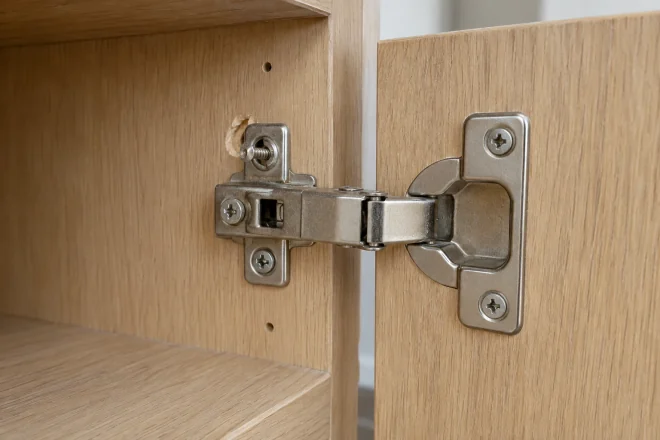 Inspection & repair reports
Show exactly what needs attention, with a photo that tells the story.
 Comparisons & proposals
Compare colors and details on a bigger screen.
Receipts, handwritten notes, holiday photos. What you do with them is up to you.
PhotoToPC is more than a way to send photos. Take work photos with your device’s camera, save them in a folder on your PC and compare them side by side, all in one app. Notes stay with the photos.
Use your device’s camera, organize the photos into albums, and send them to your PC. Your device or camera app may also keep a copy in its photo library.
Import existing photos in batches, too.In Chrome or Edge on your PC, save photos and notes where you choose. Open them in other programs and back them up your way.
Compare side by side, with a slider, by blinking, or in an overlay. Add notes as you go, and find them later with search.
Photos and notes, together on screen.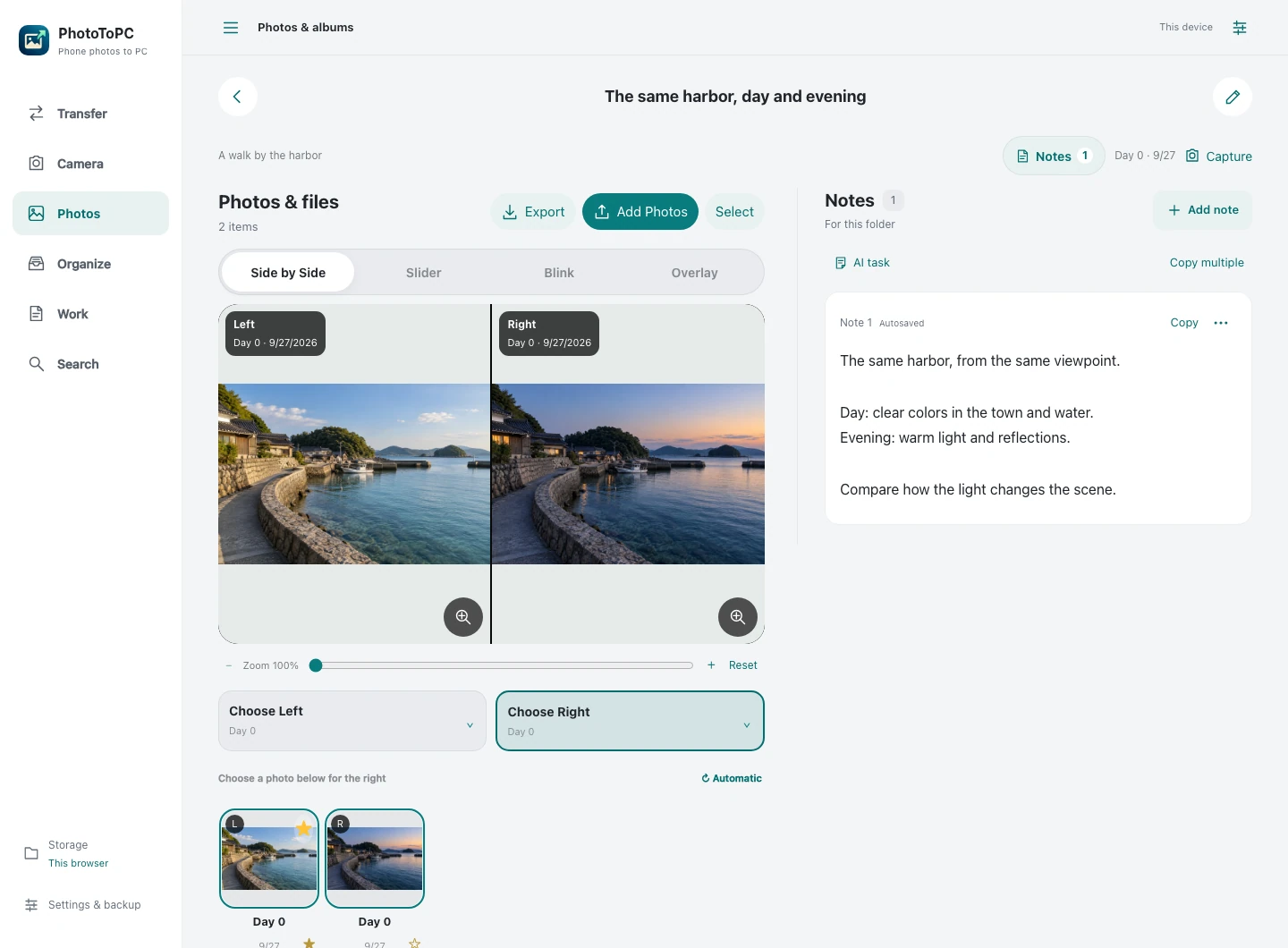
Choose photos already in your photo library. The same steps work between two phones or two computers.
Open the app on both devices. Your PC shows a connection number and QR code.
Choose your photos. Enter the number or scan the QR inside the app.
Review and save. Photos land in your chosen folder, ready to copy from the screen.
Connection setup needs internet access. Keep both screens open during the transfer.
Use Chrome or Edge on your computer. On iPhone, add the app to your Home Screen.
Select + next to your device to open its setup steps.
On a computer, you make one folder for your photos and notes. Its contents are ordinary files, which you can also hand to an AI tool later.
Follow these 7 steps from the top.
Open phototopc.app/app in Chrome or Edge. On the first screen, choose “Create a storage folder on your computer”.
On the next screen, press “Choose where to save”. A window for choosing a folder opens.
In that window, open the place where you want to keep your photos, such as Documents. Then make a new folder: on Windows, press “New folder” at the top of the window; on a Mac, press “New Folder” at the bottom left.
The keyboard also works: Ctrl + Shift + N on Windows, or ⌘ + Shift + N on a Mac.Type PhotoToPC as the name of the new folder and press Enter (Return on a Mac).
Make sure the new folder is selected, then press “Select Folder” on Windows, or the button at the bottom right of the window on a Mac.
Your browser asks whether phototopc.app may edit the files in PhotoToPC. Choose “Allow”.
After setup, review the terms of use. Tick the box and choose “Agree and start”. To add photos, open Organize and choose Add Photos. Browse your photos in Albums, or open Transfer to send or receive.
Next time, just open the app in the same browser to continue. On another computer, choose “Open an existing storage folder” and select the same folder.
On an iPhone or iPad, use the app from an icon on the Home Screen. A browser tab keeps its records separately, so start from the icon.
Use the steps for your browser. Safari is shown first, followed by Chrome, both with screenshots. Red markers show where to act.
Follow these 5 steps from the top. Tap an image to enlarge it.
Open phototopc.app/app in Safari. At the bottom of the screen, tap the “…” button to the right of the address bar. If you see the Share button (a square with an arrow pointing up) there instead, tap it and go to step 3.
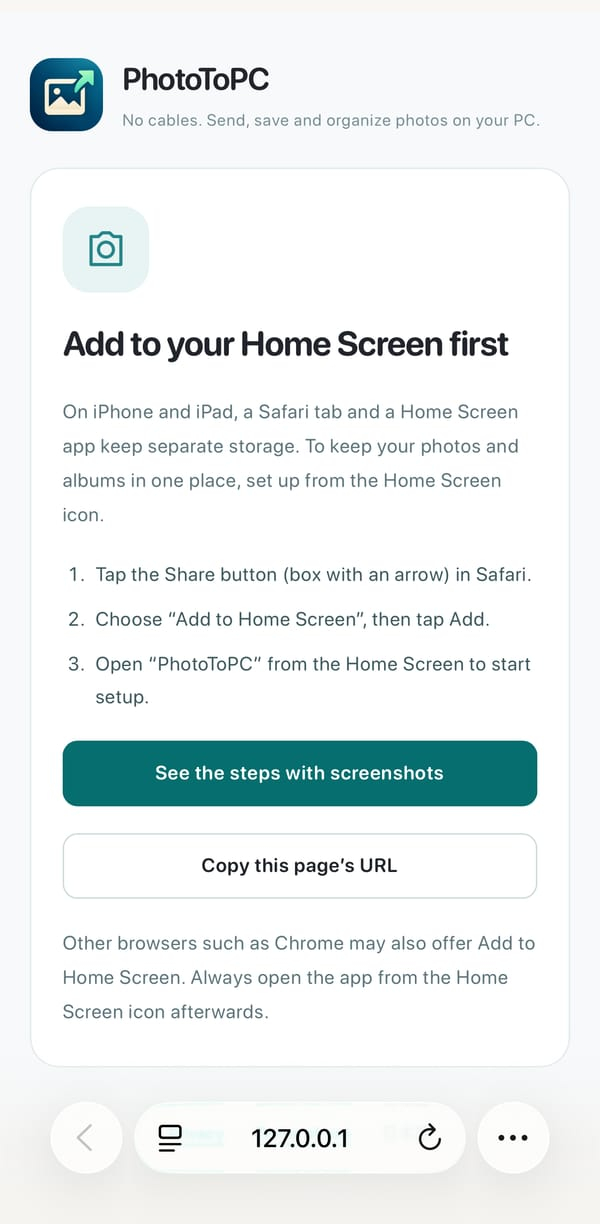 Enlarge image ↗
A menu opens. Choose “Share” at the top of the menu.
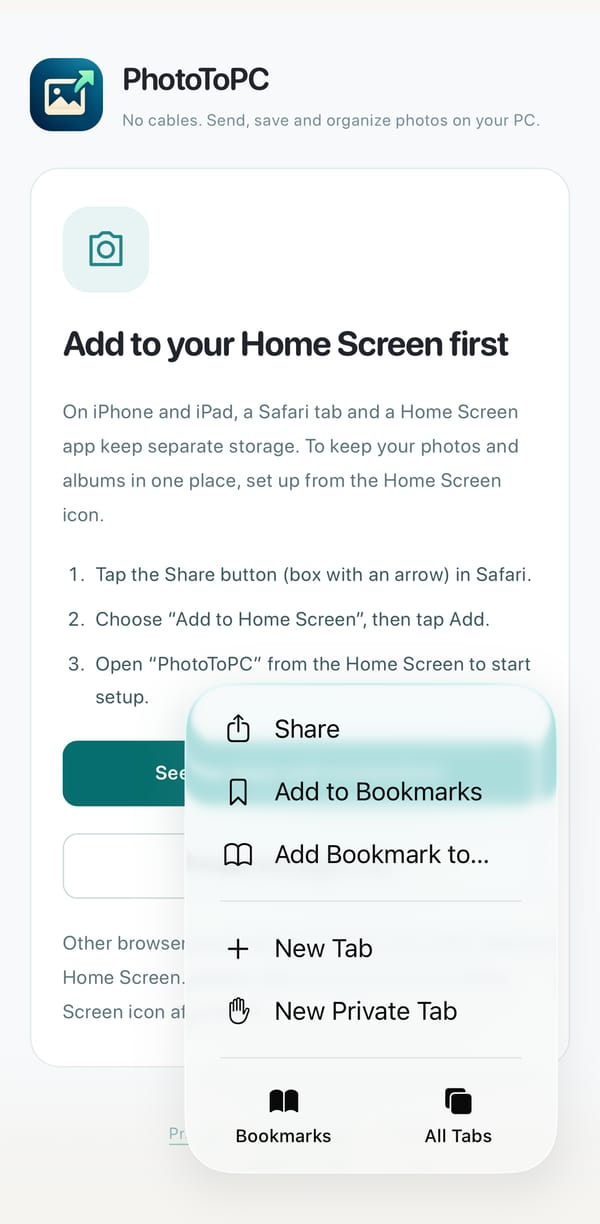 Enlarge image ↗
A list of actions opens. Scroll down and tap “Add to Home Screen”.
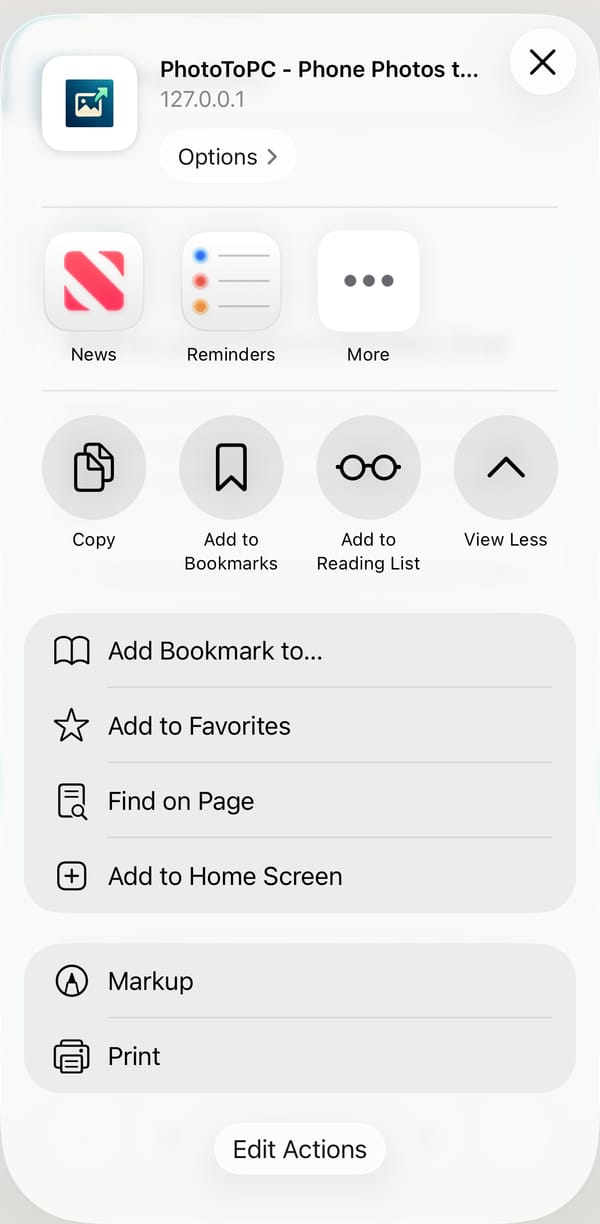 Enlarge image ↗
Check the name and tap “Add” at the top right. If you see “Open as Web App”, leave it turned on.
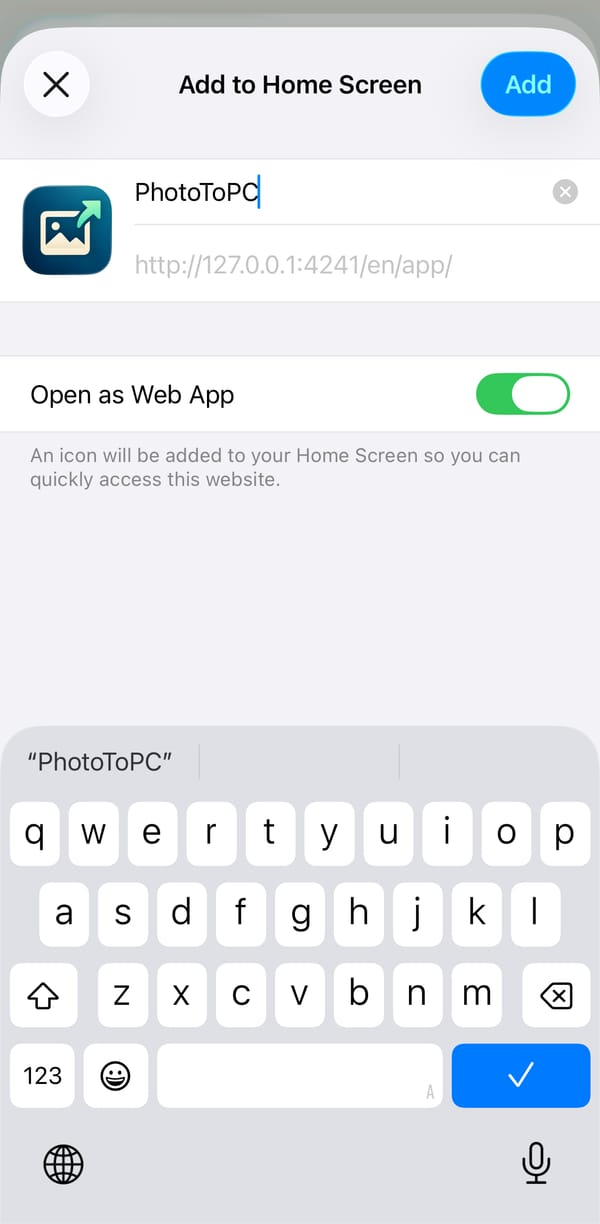 Enlarge image ↗
A “PhotoToPC” icon appears on your Home Screen. Open the app from this icon to start the setup.
 Enlarge image ↗
Requires iOS or iPadOS 16.4 or later. If “Add to Home Screen” is missing, update your OS and Chrome, or use the Safari steps above.
Follow these 6 steps from the top. Tap an image to enlarge it.
Open phototopc.app/app in Chrome and tap Share (the square with an upward arrow) in the address bar. The share sheet opens.
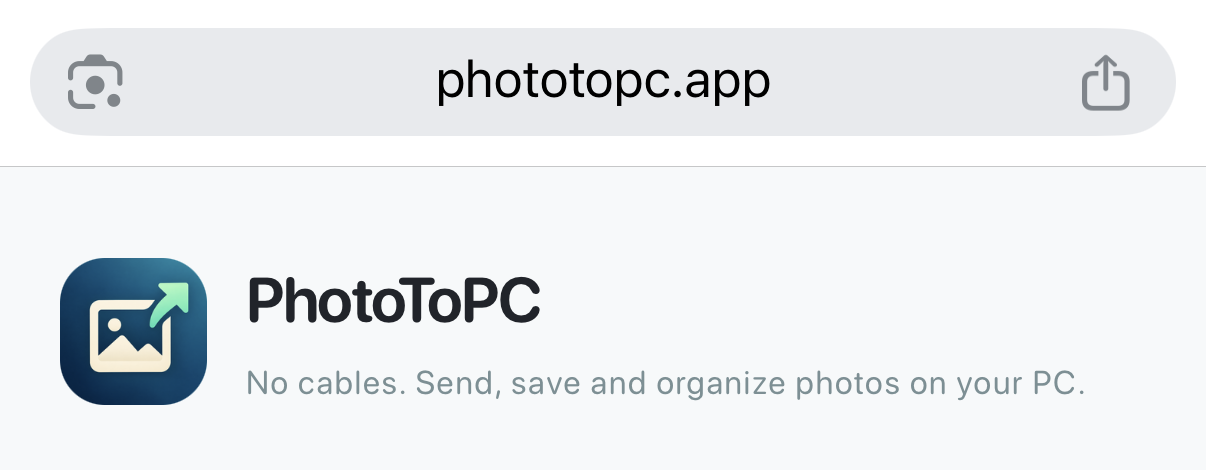 Enlarge image ↗
Tap “View More” in the share sheet to expand the list of actions. If “Add to Home Screen” is already visible, go to step 4.
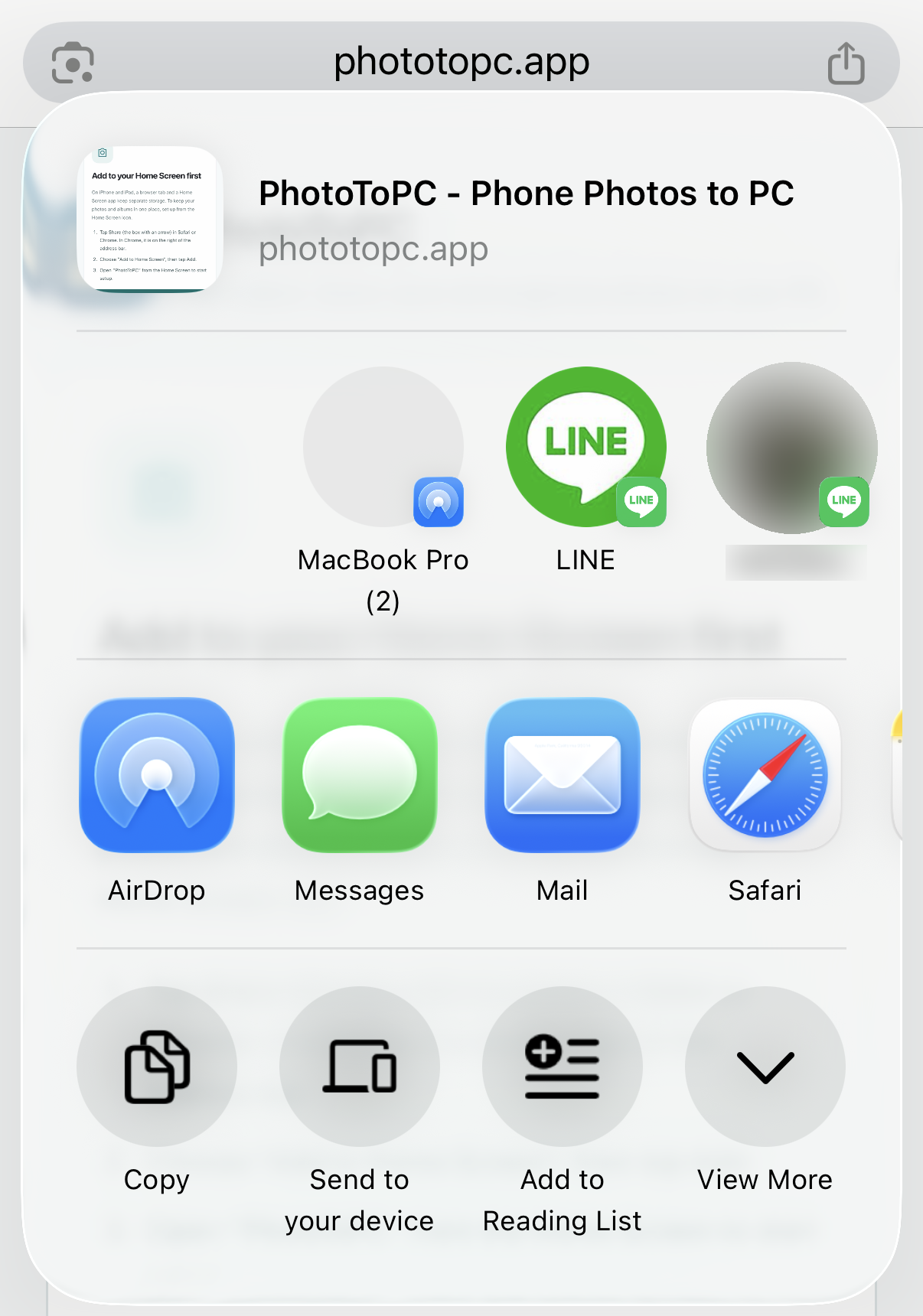 Enlarge image ↗
After the list expands, swipe upward through the actions until “Add to Home Screen” is visible. The image shows the list after revealing it.
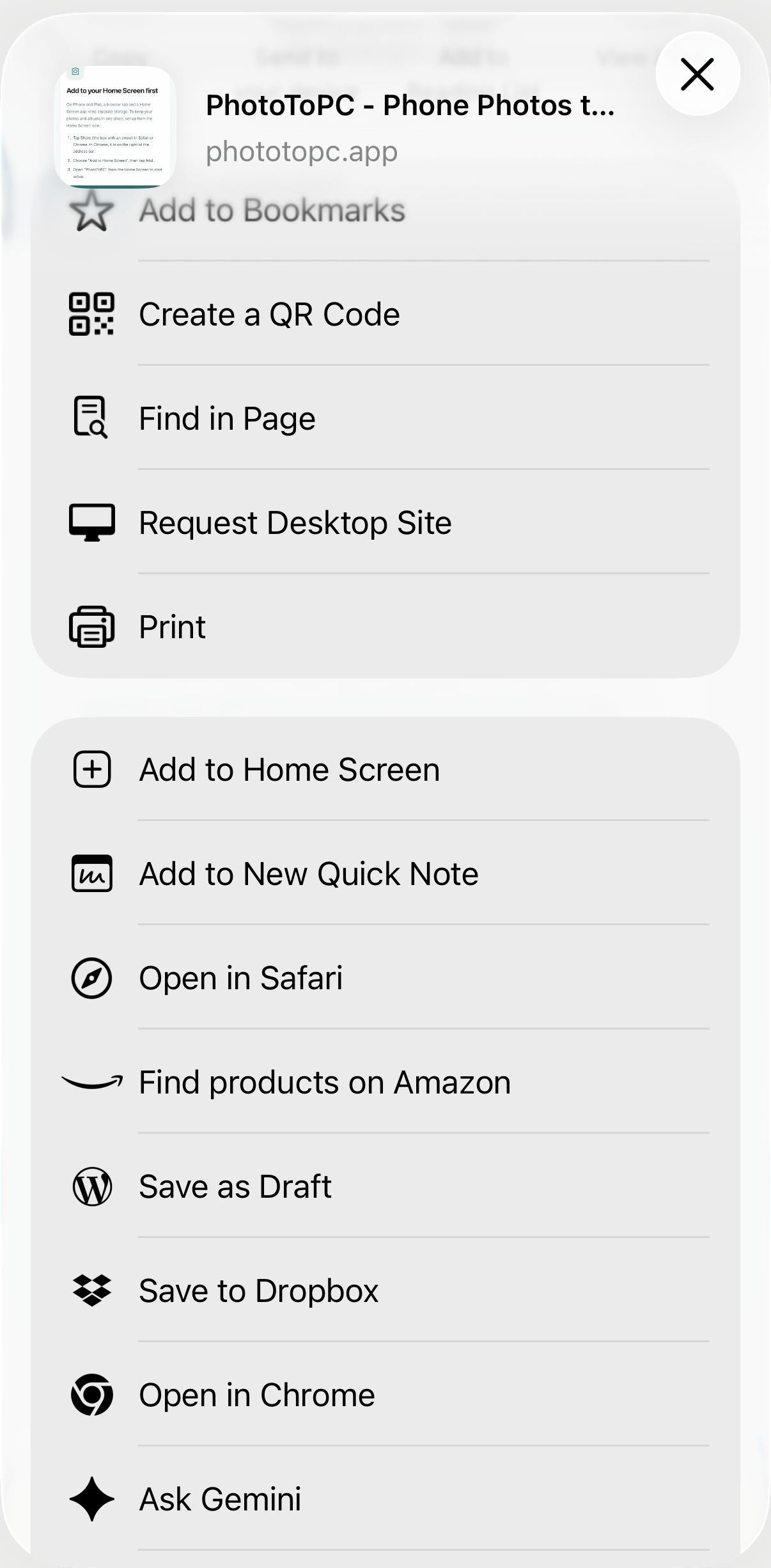 Enlarge image ↗
Choose “Add to Home Screen”. A screen opens with the app’s name and icon.
Enlarge image ↗Check the app’s name and tap “Add” at the top right. If “Open as Web App” appears, leave it on.
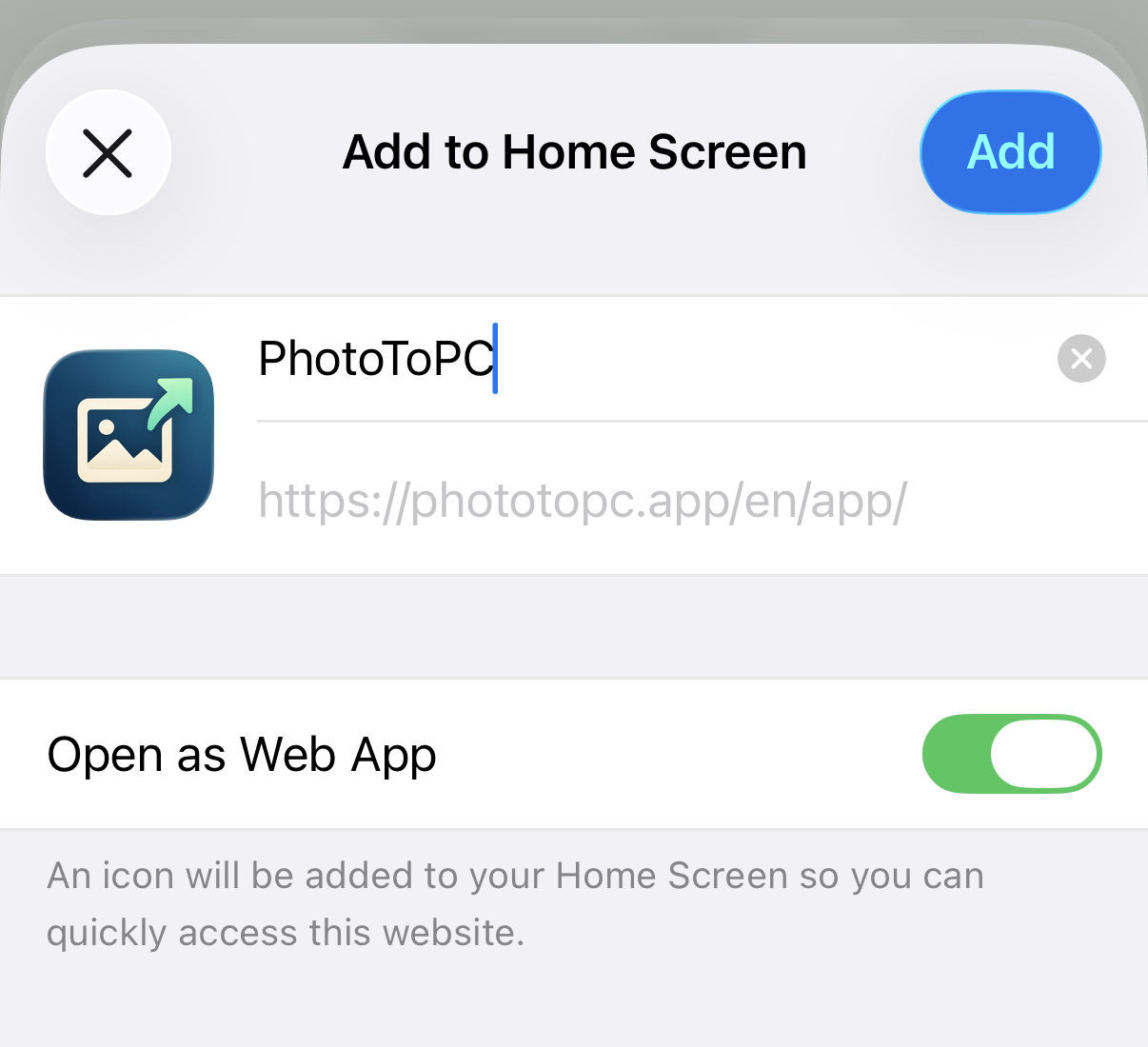 Enlarge image ↗
Tap the new icon on your Home Screen. On your first launch, choose “Start on this device” to complete setup.
 Enlarge image ↗
From then on, always open the app from the Home Screen icon.
On Android, start directly in Chrome. Installation is optional. Adding the app to your Home Screen makes it easier to open next time.
Follow these 5 steps from the top.
Open phototopc.app/app in Chrome.
On your first visit, choose “Start on this device” to prepare storage and review the terms. You can then start taking or importing photos.
While using the app in Chrome, tap an offer such as “Install” or “Add to Home screen” if it appears. The wording and timing vary with your device and Chrome version.
If there is no offer, open Chrome’s ⋮ menu at the top right and choose “Add to Home screen” or “Install app”. The option may be absent if the app is already installed.Choose “Install” or “Add” in Chrome’s confirmation and wait for it to finish. An app icon is added to your Home Screen.
Tap the Home Screen icon to open the app. If you cannot find it, also check your device’s app list.
Photos and records are saved on your device. Keep another copy of important data, for example on your computer.
We do not upload your photos, notes or other data to our servers. Your devices exchange them directly over an encrypted connection. A server only helps the two devices find each other.
If a direct connection cannot be established, you can export an encrypted file protected by a passphrase and hand it over instead.
Choose by where you want your photos and how you want to send them. This app is for cable-free transfers to Windows or Mac, with a place to organize what arrives.
WHAT YOU NEEDInternet access · iPhone Home Screen setup
See photos as they arrive. Copy them into documents, then keep and organize them in a folder.
WHAT YOU NEEDA cable · photo import setup on your computer
Connect by cable and import into your computer’s photo app.
WHAT YOU NEEDApple Account · available iCloud storage
Use cloud storage to keep your photo library in sync across devices.
WHAT YOU NEEDNearby Apple devices
Send photos directly from an iPhone to a nearby Mac.
PhotoToPC is a manual transfer tool. Connection setup needs internet access.
Apple’s official instructions: USB and iCloud photo transferUsing AirDrop
Photos saved in your PC folder can be read directly by any AI tool that works with files. A meeting whiteboard becomes a list of owners and deadlines.

“Organize this photo into decisions, owners and deadlines. Flag anything unreadable or missing instead of guessing.”
October 18 · New models A and B
Prepare for a target of 20 business meetings.
| Task | Owner | Due |
|---|---|---|
| Prepare 300 flyers | Sato | Oct 8 |
| Prepare the demo | Tanaka | Oct 10 |
| Build registration page | Suzuki | Oct 11 |
Venue Wi-Fi and a connection testNo owner or deadline recorded
Results vary by AI tool. Check owners, dates and numbers against the original photo.
Other ideas: receipts into expense CSVs, inspection photos into report drafts, or handwritten notes into clean text.
Bring your own separate AI tool that can read and write the folder. PhotoToPC does not automatically send photos or instructions anywhere. Paid AI services charge their own fees. Content you give your AI may be sent to its provider, so leave out personal or confidential information.
A little clarity before you send that first photo.
PhotoToPC is free to transfer, save, organize, annotate and compare photos. You do not need AI. If you choose a paid external AI service, its fees are charged by that AI provider.
Yes. Use Chrome or Edge on your PC, and add the app to your iPhone Home Screen from the Share menu in Safari or Chrome. Display a code under Receive on the PC, then enter it under Send on the iPhone or scan the QR inside the app. Keep both screens open until the transfer finishes. Mac, Android, phone-to-phone and computer-to-computer transfers work too.
Organize imported photos into work albums in PhotoToPC and send them to your PC. PhotoToPC does not automatically save to your phone’s photo library, but your device or camera app may keep a copy there when you use its camera. Importing an existing photo also leaves the original in place.
Yes. Choose Add photos or files to import multiple existing photos. There is no need to take them again. Supported image formats depend on your device and browser.
No. Connect the two devices directly by code or QR. Loading the site, updates and connection setup need internet access. If you choose a folder synced by iCloud, OneDrive or another service, that service’s settings apply.
Chrome and Edge on a PC save photos and notes in a PhotoToPC folder at a location you choose. Phones use local browser storage. The app does not upload photos or notes to our servers; transfers are encrypted and direct between devices. A server exchanges connection information. An external AI tool may send the content you give it to its provider. Check its permissions, settings and your workplace’s rules.
Keep both screens open and reconnect with a new number. If needed, try another permitted network or the same Wi-Fi, and check VPN and local-network settings. Network restrictions can prevent a direct connection. You can also export an encrypted file protected by a passphrase and import it on the other device.
Choose Open app on this website. On your PC, use Chrome or Edge to set up a library folder. On iPhone, choose Add to Home Screen in the Share menu in Safari or Chrome before first-time setup.
No. Transfers start when you choose Send and Receive; there is no automatic background sync. Results your AI saves in the PC library folder appear after the app checks them.
Your own AI tool that can read and write files in a folder on your PC. PhotoToPC does not include an AI. Open your PhotoToPC folder in that tool, paste the request copied from the app and run it. Results saved in the format the request specifies appear in the Work tab, where you can review and edit them. Without an AI, transfer, saving, organizing, notes and comparison all work as usual.
 YOUR PHOTOS. YOUR NEXT PROJECT.
Free. No cable. No account.
Get started for freeSee the first-time setupPhotos are generated samples. App screenshots show the actual PhotoToPC app. The phone illustration, documents and AI results are illustrative examples.